Stowia
A clipboard history that keeps everything you copy on your Mac, one shortcut away.
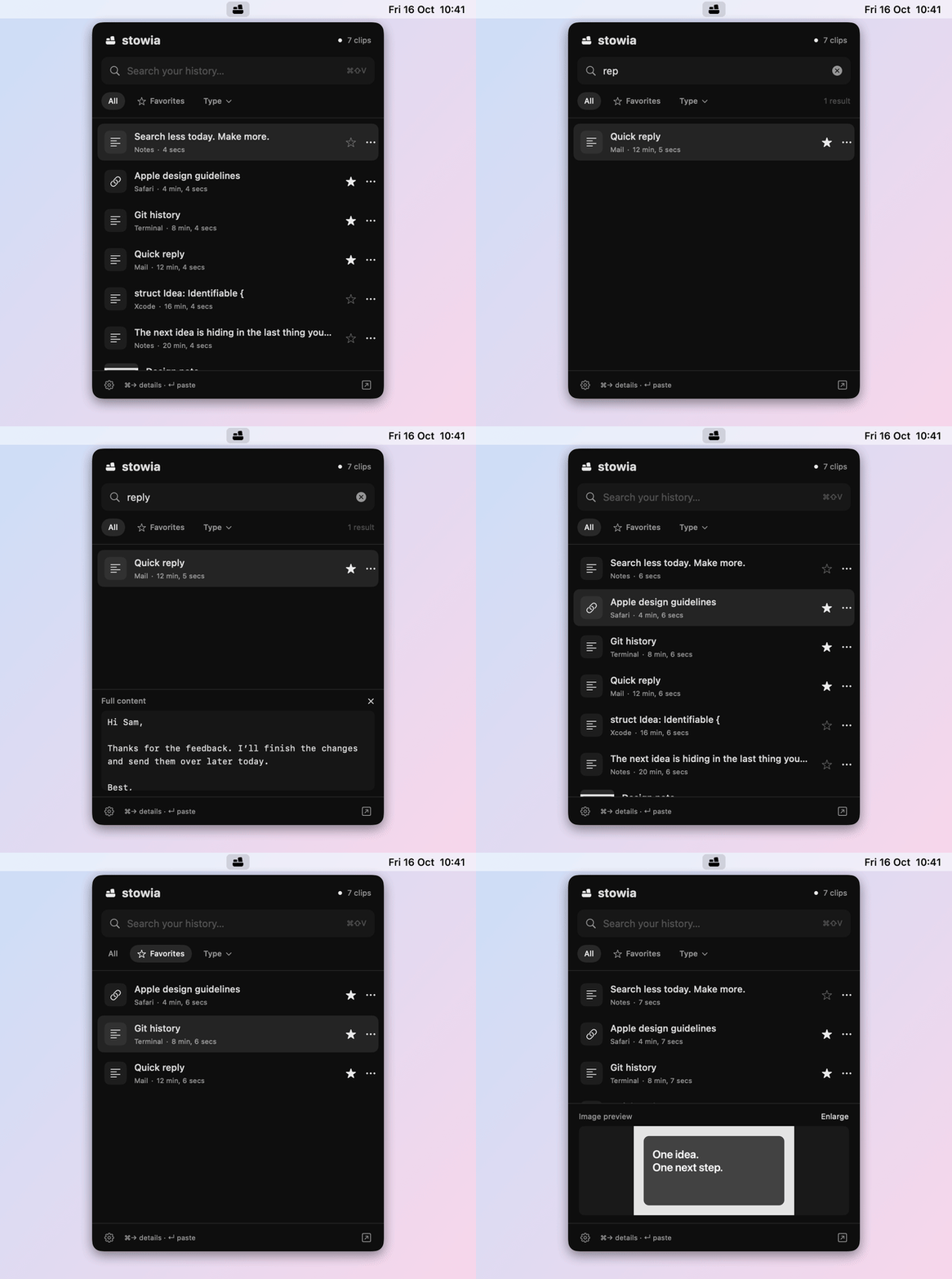
Stowia remembers the text, links, images and files you copy. Press CommandShiftV, type a few letters and paste what you copied an hour or a week ago.
Everything you copy, one shortcut away.
Press CommandShiftV, type, Return. Stowia pastes into the app you were using, or only copies if you prefer to paste yourself.

-
Text, links, images and files
Rich text keeps its formatting. For files, Stowia keeps their location.
-
Plain text when you want it
ShiftReturn pastes as plain text.
-
Limits you choose
By default 30 days, 500 clips and 200 MB. Pause saving at any time.
Find it by a word.
Search the content, the names you give clips and the app they came from. CommandRight arrow shows the full content.

-
Several words
Several words narrow the results.
-
No accents needed
calismafinds çalışma. -
The library
A window with a large preview, names, and actions such as Open in Browser, Show in Finder and Save Image.
Keep what matters.
Favorites stay until you delete them, whatever the history limits.


-
Name a clip
Give a clip a name and find it by that name.
-
Images
Copied images get thumbnails and a preview.
-
Made for the Mac
Native SwiftUI and AppKit, in English and Turkish.
Privacy
The history never leaves your Mac.
Stowia has no telemetry and sends nothing about you or your clipboard anywhere.
-
No telemetry, one version check
Stowia’s only network request asks GitHub for the latest version number, once a day.
You can turn it off in Settings › Updates › Check for updates automatically. An update is downloaded only when you click Download and Install.
-
Passwords stay out
Stowia skips everything that apps mark as concealed, transient or auto-generated (nspasteboard.org), which is how password managers flag what they copy. 1Password, Bitwarden and Apple Passwords are excluded from the start, and nothing copied while an excluded app is in front is saved.
Apps that don’t mark their secrets can still have them saved, so exclude them or pause saving.
-
Stored on your Mac
The history is in
~/Library/Application Support/Stowia:history.jsonlists the clips, and one.clipfile per clip holds what was copied. Only your user account can read them, and they are not encrypted beyond what FileVault does. For files, only their location is kept, not the files themselves.Settings are in
~/Library/Preferences/com.hamzabasaran.stowia.plist. -
What it saves, and when
Stowia checks the clipboard every 0.65 seconds. What was on the clipboard before Stowia started, or was copied while saving was paused, is not saved.
Install
A regular Mac app in a disk image. No installer, no account.
-
Download
Download Stowia.dmg from the latest release on GitHub.
-
Drag it to Applications
Open the disk image and drag Stowia to Applications.
-
Open it from Applications
Eject the disk image, then open Stowia from Applications, not from the disk image.
The first time, macOS asks you to confirm
Stowia isn’t notarized by Apple yet, because that needs a paid developer account. So macOS holds back the first launch until you allow it. You do this once per download.
- macOS says it could not verify Stowia. Click Done.
- Open System Settings › Privacy & Security, scroll down to “Stowia” was blocked, click Open Anyway and confirm.
On macOS 14 you can instead Control-click Stowia in Applications and choose Open.
-
Press CommandShiftV
Stowia lives in the menu bar. Press the shortcut or click its icon to open the panel. It saves what you copy from then on.
-
Allow pasting with Return
To paste with Return, Stowia needs Accessibility access: in the panel choose ⚙ › Settings…, click Allow Access… under Pasting and turn on Stowia in System Settings › Privacy & Security › Accessibility.
Without it, Return copies the clip and you paste with ⌘V.
Open at login
To start Stowia when you log in, turn on ⚙ › Settings… › General › Open at login.
Keyboard shortcuts
Click a clip to paste it. The star adds it to your favorites; ••• or a right-click copies it, copies it as plain text or deletes it.
| Shortcut | Action |
|---|---|
| CommandShiftV | Open or close the panel |
| Up arrowDown arrow | Select a clip |
| Return | Paste into the previous app Copies instead without Accessibility access |
| ShiftReturn | Paste as plain text |
| CommandRight arrow | Show or hide the full content in the panel |
| CommandComma | Settings |
| Esc | Close |
In the panel
All, Favorites and Type filter the list. The ↗ button opens the library, where you can name clips and see them in full.
Some apps use ⌘⇧V to paste without formatting; while Stowia runs, ⌘⇧V opens Stowia instead, and ⇧Return pastes as plain text. If the shortcut can’t be registered, the panel says so and the menu bar icon still opens it.
Settings
- General
- Open at login.
- History
- How long clips are kept, how many, and how much space they may take.
- Pasting
- Accessibility access for pasting with Return.
- Privacy
- Apps whose copies are never saved, Clear Last Hour and Clear History. Clearing keeps your favorites.
- Updates
- The daily check and Check Now.
Updates and help
Stowia checks for a new version once a day. When one is out, a dot appears on the ⚙ button in the panel, and Download and Install in Settings › Updates verifies the disk image, opens it and quits Stowia so you can replace the old version.
- Changelog What changed in each version.
- Uninstall Remove the app, its history, its settings and its Accessibility permission.
- Issues Report a bug or suggest an idea on GitHub.
- Ko-fi Stowia is free. If it saves you time, you can buy me a coffee.
Stowia is free and open source under the MIT license. Made by Hamza Başaran in Germany.