Findling
Find any file, folder, project or app on your Mac as you type.
Press ShiftCommandSpace, type a few letters and open what you need. Findling keeps its own index on your Mac, so results appear instantly and your files never leave your Mac.
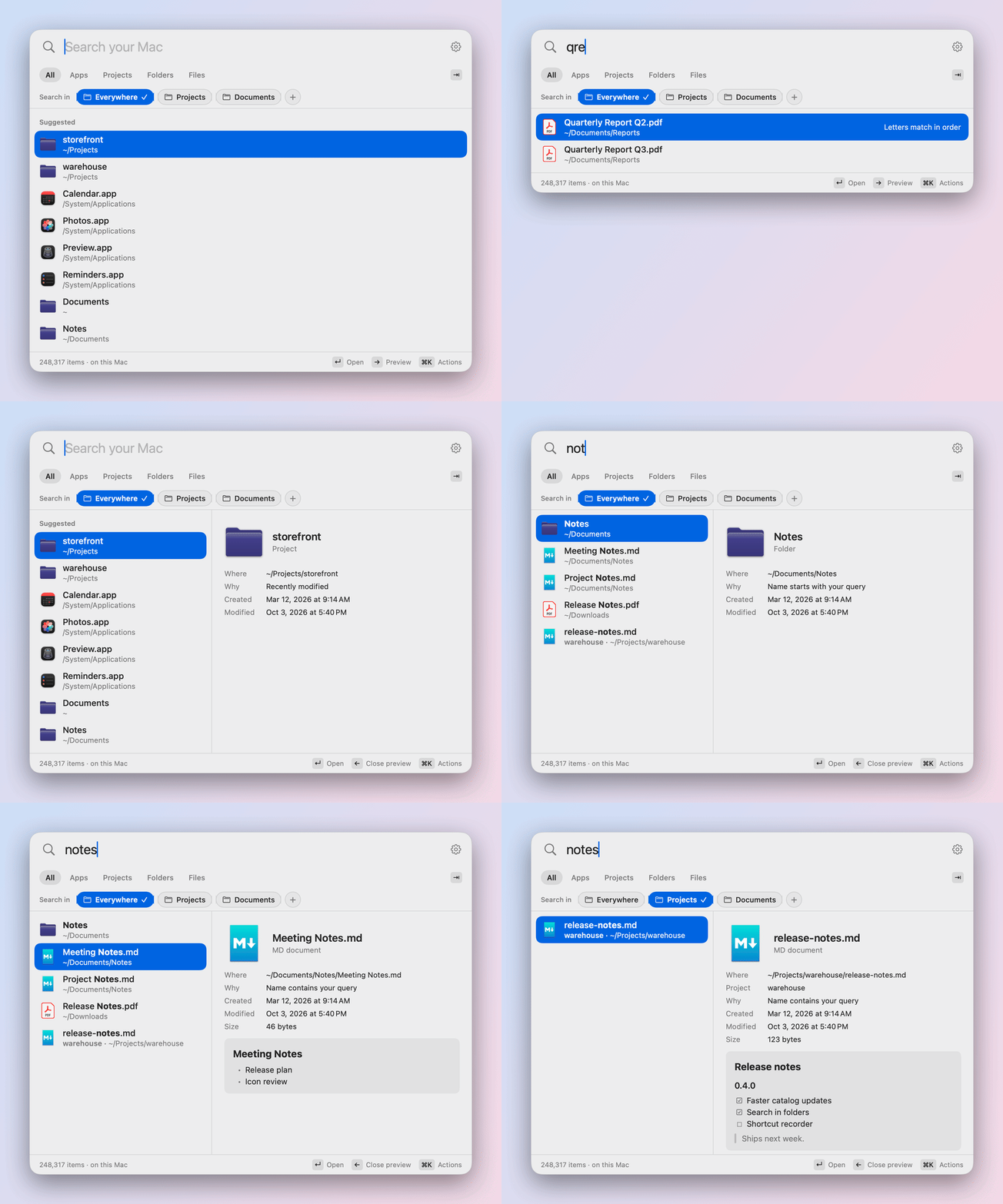
Results while you type.
Findling keeps its own index of your home folder, apps, iCloud Drive and cloud folders. It stays current within seconds, and on a million items most searches take under 50 ms.

-
Letters in order
qrepfinds Quarterly Report. You don’t need the whole word, only its letters in the right order. -
No accents needed
calismafinds Çalışma. Type plain letters, Findling matches the accented ones. -
Names in your languages
Apps and system folders are found by their names in your languages, like Kalender or Belgeler.
Look before you open.
Press Right arrow at the end of the query, or CommandY, to see the selected result next to the list without opening it.

-
Quick Look thumbnails
A thumbnail of the document or image, from the same system service Finder uses.
-
The details
Page counts, image sizes, and the dates the file was created and last changed.
-
Markdown, rendered
Headings, lists, tables and task lists, so a note reads like a note.
Narrow it down.
Filter by type, search only the folders you use most, and keep the results you need close at hand.
-
Type filters
Tab through Apps, Projects, Folders and Files. Shift-Tab goes back.
-
Search in
Add your favourite folders to the Search in row and search only there.
-
Projects
Recognized by
.git,Package.swift,package.json,Cargo.toml,pyproject.tomlandpubspec.yaml. -
Learns what you open
Findling remembers which result you open for a query.
-
Pin and hide
Pin the results you need often. Hide the ones you never want to see.
-
Made for the Mac
Native SwiftUI and AppKit. Light and dark, four theme colors, three text sizes.
Privacy
Your files never leave your Mac.
Findling indexes and searches locally, not on a server. What it knows about your files stays in two places on your Mac.
-
No telemetry, one version check
The only request Findling makes asks GitHub for the latest version number, once a day. It sends nothing about you or your files and needs no account.
You can turn the check off in Settings › General › Check for updates automatically. An update is downloaded only when you click Download and Install.
-
Your files stay as they are
Findling never moves or changes your files. It searches names and paths, not what is inside them. The preview reads the selected file only while it is shown and stores nothing.
-
The index stays on your Mac
An SQLite database in
~/Library/Application Support/Findling.Settings, pins and learned choices are in
~/Library/Preferences/com.hamzabasaran.findling.plist.
Install
A regular Mac app in a disk image. No installer, no account.
-
Download
Download Findling.dmg from the latest release on GitHub.
-
Drag it to Applications
Open the disk image and drag Findling to Applications.
-
Open it from Applications
Eject the disk image, then open Findling from Applications, not from the disk image.
The first time, macOS asks you to confirm
Findling isn’t notarized by Apple yet, because that needs a paid developer account. So macOS holds back the first launch until you allow it. You do this once per download.
- macOS says it could not verify Findling. Click Done.
- Open System Settings › Privacy & Security, scroll down to “Findling” was blocked, click Open Anyway and confirm.
On macOS 14 you can instead Control-click Findling in Applications and choose Open.
-
Press ShiftCommandSpace
Findling lives in the menu bar. The shortcut opens it from any app.
On the first launch
Findling indexes your Mac in the background: a few minutes for a million items. You can search right away; results fill in as the index grows.
macOS asks whether Findling may read your Desktop, Documents and Downloads folders. If you decline, those folders are skipped, and Settings › Index lists every folder Findling could not read.
To start Findling when you log in, turn on Settings › General › Open at login.
Updates
Findling checks for a new version once a day. When one is out, the menu bar menu offers it, and Download and Install verifies the disk image, opens it and quits Findling so you can replace the old version.
Keyboard shortcuts
Click a row to select it, double-click to open it, right-click for its actions.
| Shortcut | Action |
|---|---|
| ShiftCommandSpace | Open or close Findling Change it in Settings › General |
| Up arrowDown arrow | Select a result |
| Return | Open |
| CommandReturn | Show in Finder |
| Tab/ShiftTab | Next / previous type filter |
| Right arrow/Left arrow | Open / close the preview At the end of the query |
| CommandY | Toggle the preview |
| CommandK | Actions: open, show in Finder, pin, hide |
| CommandP | Pin / unpin |
| ShiftDeleteorCommandDelete | Clear the search |
| CommandComma | Settings |
| Esc | Close the preview, then Findling |
Updates and help
- Changelog What changed in each version.
- Uninstall Remove the app, its index, its settings and its folder permissions.
- Issues Report a bug or suggest an idea on GitHub.
Findling is free and open source under the MIT license. Made by Hamza Başaran in Germany.